Running ASP.NET MVC Under IIS 6.0 and IIS 7.0 Classic Mode : Solution to Routing Problem
In this blog post, we will see how to run ASP.NET MVC application under IIS 6.0 and IIS 7.0 classic mode with some configurations on IIS and Global.asax file...
26 February 2011
5 minutes read
Related Posts







I wrote a blog post on “Deployment of ASP.Net MVC 3 RC 2 Application on a Shared Hosting Environment Without Begging The Hosting Company” couple of months ago. The solution was working for most case scenarios if the server is configured properly for ASP.NET Routing. Other working case I have seen was the applications which are running under IIS 7.0 integrated mode. Under IIS 7.0 integrated mode, no special configuration necessary to use ASP.NET Routing.
As we know, one of the most beautiful parts of ASP.NET MVC framework is Routing. We have nice, clean, extensionless URLs thanks to routing and this is becoming an issue under IIS 6.0 and IIS 7.0 classic mode.
When we typing the path of a web site page inside the address bar of our web browser, we are making a request against server. If our web application is running under any version of IIS, the request hits ASP.NET framework on certain conditions. Especially, Older versions of IIS only map certain requests to the ASP.NET framework. If the extension of the web request is aspx, ashx, axd or any other extensions which is specific for ASP.NET framework are being mapped to ASP.NET framework. So, in a MVC application the requests are not being mapped to ASP.NET framework.
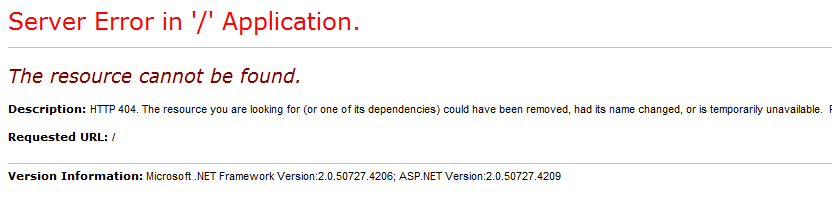
(You will be getting this 404 exception when you hit the extensionless URL of your application)
No, do not throw away your precious, new born ASP.NET MVC application which you have created working along with Nuget PMC (which is perfect), EFCodeFirst and any other cool newbie stuff. There are optional solutions for this problem and they are not like hard things to implement.
Although, if you have a Windows Server 2003 and thinking about going up to IIS 7.0 integrated or classic mode, stop right there my friend ! Because, IIS 7.0 is not compatible with Windows Server 2003. So you are stuck with IIS 6.0 for now and keep reading for the solution
The solutions are optional as indicated. They depend on what kind of powers you have over your server. Here is the list of solution you might be interested;
Option 1 : I am the guy with the full control power over my server and I want to keep extensionless URLs
If you have full access over your server, you could create so called Wildcard Script Map so that you can use the default ASP.NET MVC route table with IIS 7.0 (in classic mode) or IIS 6.0. This Wildcard Script Map will map all requests to the web server to the ASP.NET framework.
I have no experience with this option, though. I had a problem like this within this week, I have solved it with the following option and didn’t want to use this one even if I have full control over my server. I am not a server pro, so I won’t be making any comments on how this will effect the requests flow made against your server. I just thought that “man, every single request which made against my server will be mapped to ASP.NET framework. This could effect the speed of the delivery process.” and that how I skipped this option.
And, bad news guys
Microsoft, also, indicated the following line of sentence one of their web site;
“Be aware that this option causes IIS to intercept every request made against the web server. This includes requests for images, classic ASP pages, and HTML pages. Therefore, enabling a wildcard script map to ASP.NET does have performance implications.”
To implement this feature, you need to follow some steps and here is the text I grabbed from http://asp.net/ ;
![image_thumb[5]](https://www.tugberkugurlu.com/Content/Images/UploadedByAuthors/wlw/Running-ASP.NET-MVC-Under.0-Classic-Mode_14547/image_thumb5.png "image_thumb[5]")
Here's how you enable a wildcard script map for IIS 7.0 (classic mode):
- Select your application in the Connections window
Make sure that the Features view is selected Double-click the Handler Mappings button Click the Add Wildcard Script Map link - Enter the path to the aspnet_isapi.dll file (You can copy this path from the PageHandlerFactory script map)
Enter the name MVC Click the OK button
![image_thumb[4]](https://www.tugberkugurlu.com/Content/Images/UploadedByAuthors/wlw/Running-ASP.NET-MVC-Under.0-Classic-Mode_14547/image_thumb4.png "image_thumb[4]")
Follow these steps to create a wildcard script map with IIS 6.0:
- Right-click a website and select Properties
Select the Home Directory tab Click the Configuration button Select the Mappings tab Click the Insert button Paste the path to the aspnet_isapi.dll into the Executable field (you can copy this path from the script map for .aspx files) Uncheck the checkbox labeled Verify that file exists Click the OK button
Option 2 : I am the guy who has the full control power over my server, cares about performance and not care about URLs
This option is the one of the other option I do not like very much but maybe you will  So here is the deal;
We will simply add Extensions to the Route Table so that older versions of IIS can pass requests to the ASP.NET framework. This option requires changes inside Global.asax file of you application and some addition work on IIS for modifying the Default route so that it includes a file extension that is mapped to the ASP.NET framework.
Let’s see the RegisterRoutes method inside your Global.asax file;
        public static void RegisterRoutes(RouteCollection routes)
        {
            routes.IgnoreRoute("{resource}.axd/{*pathInfo}");

            routes.MapRoute(
                "Default",                                              // Route name
                "{controller}/{action}/{id}",                           // URL with parameters
                new { controller = "Home", action = "Index", id = "" }  // Parameter defaults
            );

        }
As you see here on line 7, we are aiming to get URLs without extension. Let’s see what it needs to be look like after we change it in order to implement this option;
        public static void RegisterRoutes(RouteCollection routes)
        {
            routes.IgnoreRoute("{resource}.axd/{*pathInfo}");

            routes.MapRoute(
                "Default",
                "{controller}.mvc/{action}/{id}",
                new { action = "Index", id = "" }
              );

            routes.MapRoute(
              "Root",
              "",
              new { controller = "Home", action = "Index", id = "" }
            );


        }
Here, we are assigning .mvc extension for every URL for controller name.
I want to warn you about your links inside your views. If you created them by hard coding, now you are officially screwed my friend. Because, you either have to change all of them by hand or need to implement option 1 in order to keep them unbreakable. If you used ActionLink or RouteLink kind of way, then your are good to go. Changes will be handled by MVC Framework for you.
Therefore, to get ASP.NET Routing to work, we must modify the Default route so that it includes a file extension that is mapped to the ASP.NET framework.
This is done using a script named registermvc.wsf. It was included with the ASP.NET MVC 1 release in C:\Program Files\Microsoft ASP.NET\ASP.NET MVC 1.0\Scripts, but as of ASP.NET 2 this script has been moved to the ASP.NET Futures, available at http://aspnet.codeplex.com/releases/view/39978.
Executing this script registers a new .mvc extension with IIS. After you register the .mvc extension, you can modify your routes in the Global.asax file so that the routes use the .mvc extension.
After this implementation, your URLs will look like this;
/Home.mvc/Index/
/Product.mvc/Details/3
/Product.mvc/
Option 3 : I am the guy who has no control power over my server, not care about URLs (If you care, it does not matter. You have no choice)
This option is the easiest way of make your application up and running within minutes depending on your application structure. Only you need to do here is; making some changes inside your Global.asax file, recompiling your application and publishing it into your server. That’s all. Let’s see how our new RegisterRoutes method inside Global.asax file needs to be look like;
        public static void RegisterRoutes(RouteCollection routes)
        {
            routes.IgnoreRoute("{resource}.axd/{*pathInfo}");

            routes.MapRoute(
                "Default",
                "{controller}.ashx/{action}/{id}",
                new { action = "Index", id = "" }
              );

            routes.MapRoute(
              "Root",
              "",
              new { controller = "Home", action = "Index", id = "" }
            );


        }
Look at line 7. Isn’t it familiar? It is one of the ASP.NET framework extensions. You could add .aspx or whatever you want from ASP.NET framework extensions. It is already registered into the Default route so the requests will be mapped to the ASP.NET framework.
I hope that this is the solution you are looking for your problem.

Hey, I'm Tugberk 👋
Coder 👨🏻💻, Speaker 🗣, Author 📚, ex-Microsoft MVP 🕸, Blogger 💻
I live in London, UK 🏡
